

Text to speech

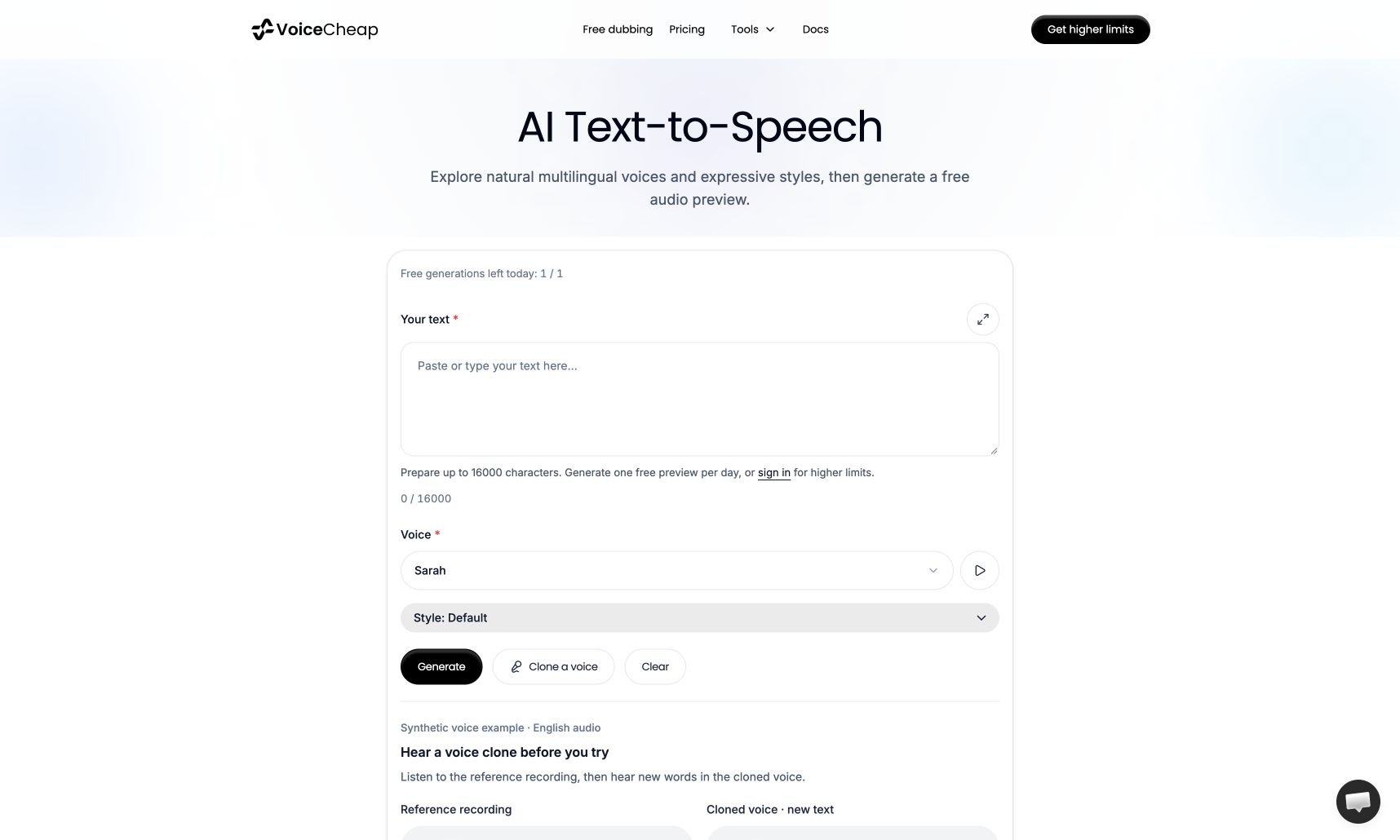
Turn a script, article, or short passage into spoken MP3 audio. You can try the public text-to-speech tool without creating an account. The public VoiceCheap text-to-speech editor, with the text field, voice selector, style selector, and Generate button
Generate your first recording

1

Enter your text

Paste or type your script into Your text. The counter below the editor shows the 8,000-character limit.
2

Choose a voice and style

Open Voice to choose a voice. Use the play button beside it to hear a sample. Open Style if you want a different delivery, such as calm, energetic, or whispering.
3

Generate and download

Select Generate. When the result appears, listen in the audio player and select Download to save the MP3.
The public tool currently offers one successful guest generation per 24-hour window. Its remaining-use counter appears above the editor. A failed generation does not consume that allowance. Signing in opens the workspace tool with higher allowances and saved generation history. Texts longer than 2,300 characters are voiced up to a sentence near their middle. The rest of the text is voiced with the same voice on a paid plan.

Voice cloning and full projects

Clone a voice opens the account flow. Saved custom voices are available on eligible plans; only clone a voice you have permission to use. If you need the audio synchronized with a translated video, subtitles, or lip sync, create a dubbing project instead.

If generation does not start

Check that the text field is not empty and that the on-page character and daily-use counters permit another generation. If a request fails, retry or choose another voice. The voice preview button plays a sample; it does not generate your text.